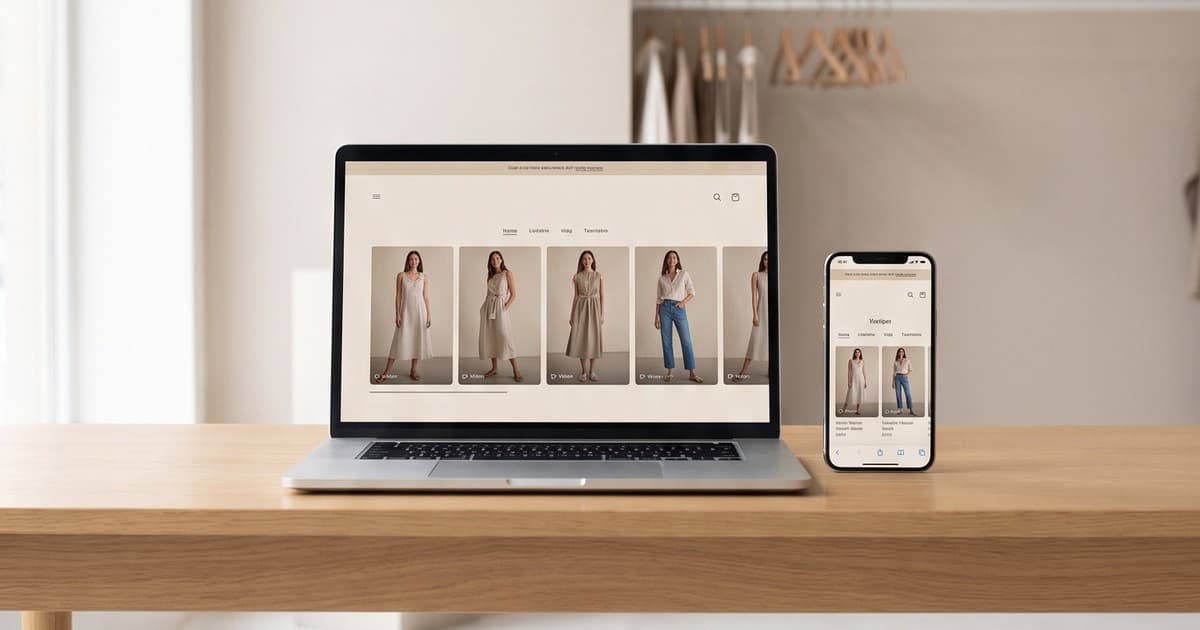
Quick answer: A shoppable video gallery is a branded row or grid of short, on-model videos placed on a Shopify collection page, where each video is tagged with the products it shows so shoppers can tap straight to the product or add to cart. Yes, there are ecommerce video platforms built for this. Most install as a Shopify app block, let you match the gallery to your brand (colors, fonts, thumbnail shape, play behavior), and assign a different video set to each collection. The hard part is rarely the widget. It's having enough fresh, consistent, on-brand video for every collection you sell.
Here's the situation most fashion operators are in. Your product pages have decent imagery. Maybe a few hero products even have a video. But your collection pages - "New In", "Dresses", "Summer Edit", "Under $100" - are a flat grid of thumbnails that looks exactly like every other Shopify store in your category. That page is where shoppers decide which three products to click. It's also one of the most under-used surfaces on the store.
This guide is about that page specifically. If you want the broader picture of shoppable video across PDPs, homepage, and collections, start with our complete shoppable video setup guide for Shopify fashion brands. Here we go deep on galleries for collection pages: what they are, how to lay them out, how to keep them fast, and how to feed them with enough content.
What a "Branded Video Gallery" Actually Means
The phrase gets used loosely, so let's pin it down. A shoppable video gallery on a collection page has four parts:
- A video container - a horizontal carousel, a grid, or a "stories" style row of circular thumbnails.
- Product tags - each video is linked to one or more products in your catalog, with price and a buy or add-to-cart action.
- Collection targeting - the gallery on "Dresses" shows dress videos, the gallery on "Denim" shows denim. Not one generic reel repeated sitewide.
- Brand styling - the player, thumbnails, buttons, and overlays look like your store, not like a third-party widget bolted on.
That last point is what "branded" means in practice. A gallery that uses the vendor's default purple play button and rounded corners on a minimalist luxury store does real damage. It signals "plugin" instead of "brand". Good platforms let you control:
- Thumbnail shape and aspect ratio (9:16 portrait is standard for fashion)
- Colors and fonts inherited from your theme or set manually
- Hover and autoplay behavior (preview on hover, muted autoplay, or click-to-play)
- Overlay content - product name, price, a "Shop the look" label, or nothing at all
- Logo or watermark removal on paid plans
Why Collection Pages Are Worth the Effort
Collection pages sit in an awkward middle. They get more traffic than most individual product pages because they're what your navigation, ads, and organic search often land on. But they convert worse because the shopper hasn't committed to a product yet.
Video changes three things on that page:
- Faster product discovery. A shopper who watches a 12-second clip of a linen dress moving on a model learns more about fabric, drape, and length than from three static thumbnails. She clicks with more confidence.
- Outfit-level selling. A gallery video can show a full look, then tag the top, trousers, and bag. Static grids sell one SKU per tile. Video sells the basket.
- Time on page and engagement. Shoppers who interact with a gallery tend to stay longer and view more products. That's good for conversion, and it's a healthy signal for the page overall.
Fashion is the category where this matters most. As we covered in our piece on how product video affects ecommerce conversion rate, clothing is bought on fit and movement, and those are exactly the things a still photo hides.
The SEO angle
Collection pages are often your strongest organic landing pages for category terms like "women's linen dresses" or "wide leg jeans". Adding a gallery won't rank a page by itself. But it does help in a few indirect ways:
- More engagement and fewer quick bounces back to search results
- Unique, collection-specific content instead of a duplicate-looking product grid
- An opportunity to add VideoObject structured data for key videos, if your platform supports it or your theme lets you add it
Just don't let the gallery slow the page down. We'll get to that.
Choosing an Ecommerce Video Platform for Collection Galleries
If you're asking "are there ecommerce video platforms with branded galleries for collection pages?" - yes, several. Most shoppable video apps in the Shopify App Store support collection pages in some form. What separates them is the detail. Here's what to check before you commit.
| Requirement | Why it matters for fashion | What to look for |
|---|---|---|
| Per-collection targeting | Each collection needs its own videos | Rules by collection, tag, or manual playlists |
| Theme app block support | Clean install, no code edits | Works with Online Store 2.0 themes in the theme editor |
| Brand styling controls | Gallery must match your store | Custom colors, fonts, thumbnail shapes, no vendor branding |
| Multi-product tagging | Sell the full outfit | Tag 2-5 products per video with variant selection |
| Add-to-cart in player | Fewer clicks to purchase | Size and color selection inside the video overlay |
| Lazy loading | Protects page speed | Videos load only when scrolled into view |
| Analytics | Prove the gallery earns its place | Views, clicks, add-to-carts, attributed revenue per video |
| Bulk upload | You'll need dozens of videos | Bulk import and auto-matching to products |
If you're still comparing tools, our roundup of the best Shopify product video apps for fashion brands is a good place to build a shortlist.
Layout Options and Where to Place the Gallery
There's no single right layout. The right one depends on how many products are in the collection and how your shoppers browse.
1. Carousel above the product grid
A single horizontal row of 6-10 portrait videos placed between the collection header and the product grid.
- Best for: seasonal edits, new arrivals, campaign collections
- Pros: high visibility, sets the mood before browsing starts
- Cons: pushes the product grid down on mobile; keep the row short in height
2. Stories-style row
Small circular thumbnails at the top of the page, opening a full-screen vertical player on tap.
- Best for: mobile-heavy audiences, brands with strong social presence
- Pros: takes very little vertical space, feels familiar to Instagram and TikTok users
- Cons: thumbnails are tiny, so the cover frame has to be very clear
3. Inline video tiles in the product grid
Video tiles inserted into the grid every few rows, sized like product cards.
- Best for: large collections where shoppers scroll deep
- Pros: keeps engagement up mid-scroll, feels native
- Cons: needs careful theme support so tiles don't break grid alignment
4. "Shop the look" gallery below the grid
A gallery of styled outfit videos at the bottom of the page, each tagged with multiple products.
- Best for: cross-selling and lifting average order value
- Pros: doesn't interrupt browsing, catches shoppers who scrolled to the end without clicking
- Cons: lower visibility, so it works best as a second gallery, not the only one
A simple placement rule
For most fashion stores, start with option 1 or 2 at the top of your 5 highest-traffic collections, and add option 4 at the bottom of collections where outfits matter (dresses, workwear, occasion wear). Test inline tiles later, once you have the content volume to support them.
Content Specs: What Each Gallery Video Should Look Like
The gallery is only as good as what's in it. Here's a spec sheet you can hand to whoever produces your video.
| Spec | Recommendation |
|---|---|
| Aspect ratio | 9:16 vertical (crops cleanly to 4:5 if needed) |
| Length | 6-15 seconds for galleries; save 30-second cuts for PDPs |
| Opening frame | The product clearly visible in the first frame - this becomes your thumbnail |
| Sound | Designed to work muted; music optional, no voiceover required |
| Motion | Walk, turn, sit, or adjust - something that shows fit and fabric |
| Products per video | 1 hero product, or 2-4 for a full outfit |
| Background | Consistent within each collection so the gallery looks curated |
| File size | Compressed web delivery, ideally under 5 MB per clip |
Consistency matters more than polish
A gallery where every video has a different background, light, and model energy looks chaotic. A gallery where all eight videos share the same set, lighting, and pacing looks like a brand. When you plan content for a collection, plan it as a set, not as individual clips.
This is where many brands struggle. Getting 8-10 matching videos for every collection, every season, out of a traditional shoot is expensive and slow. You book the studio, the models, the crew, and then you still need editing and color matching. We broke down those costs in detail in our guide to fashion photography costs, traditional vs AI.
Feeding the Gallery: The Content Volume Problem
Let's do the math. Say you run a mid-sized apparel brand with:
- 25 active collections
- 8 videos per collection gallery
- A refresh every season (4 times a year)
That's 200 videos per season and 800 per year, before you count product pages, ads, and social. Even if half of the videos are reused across overlapping collections, you're still looking at several hundred clips a year.
A traditional video shoot can't keep up with that cadence at a sensible cost. Neither can most in-house teams, who are already stretched across email, paid social, and product launches. So most brands end up with a gallery on two collections and a static grid everywhere else, or worse, the same six videos repeated on every page.
How AI video production fills the gap
This is the problem Tellos is built for. Instead of filming each clip, you start from the product photos you already have - flat lays, ghost mannequin shots, or existing on-model images - and generate on-model fashion videos from them.
A practical workflow for collection galleries looks like this:
- Pick the collection and its 8-10 hero products.
- Choose a consistent model set and background for that collection, so the gallery looks curated.
- Generate a short on-model video for each product: a walk, a turn, a detail move.
- Generate 2-3 outfit videos that combine products for the "Shop the look" gallery.
- Review for garment accuracy - color, print, length, and details should match the real product.
- Export in 9:16, upload to your video platform, and tag the products.
- Repeat next season with new products, same visual system.
Tellos uses leading AI video models under the hood and adds the fashion-specific layer on top: garment accuracy, consistent models, brand-safe styling, and output at catalog scale. You don't need to manage the models yourself. If you want to see how product photos turn into motion, our guide on turning product photos into fashion videos with AI walks through it.
Keep a human check in the loop
AI video saves time and money, but someone on your team should still review every clip before it goes live. Check that:
- The color matches the physical product under normal light
- Prints and logos are correct and not distorted
- Length and fit are realistic for the size shown
- Hardware and trims (buttons, zips, buckles) look right
Our guide to AI-generated clothing photo accuracy covers this review process in more depth. An inaccurate video on a collection page doesn't just hurt that click. It drives returns.
Page Speed: Don't Let the Gallery Slow You Down
Collection pages are already heavy. They load dozens of product images, filters, and scripts. A badly configured video gallery can make them noticeably slower, which hurts both conversion and search performance.
Here's how to keep it lean:
- Lazy load everything below the fold. Videos should not start downloading until they're near the viewport.
- Use poster images. Show a compressed still frame as the thumbnail and load the video only on hover, tap, or scroll-into-view.
- Limit autoplay. Autoplaying eight videos at once on mobile is a bandwidth disaster. Autoplay one, or none.
- Serve adaptive streaming or compressed MP4. Your platform should handle transcoding. If it serves raw uploads, that's a red flag.
- Check Core Web Vitals before and after. Run the collection page through PageSpeed Insights before installing the gallery, then again after. Pay attention to Largest Contentful Paint (LCP) and Cumulative Layout Shift (CLS).
Setting It Up on Shopify: Step by Step
The exact steps depend on your platform, but the flow is similar across most apps.
Step 1: Install the app and connect your catalog
Install your chosen shoppable video app from the Shopify App Store. It will sync your products and collections so videos can be tagged to real SKUs.
Step 2: Upload and tag your videos
Bulk upload your videos, then tag each one with the products it shows. For outfit videos, tag every product that's visible and buyable. Check variant mapping so the right color is preselected.
Step 3: Create a gallery per collection
Build a gallery (sometimes called a playlist, feed, or widget) for each target collection. Use collection-based rules where available, so new videos tagged with products from that collection appear automatically.
Step 4: Style it to match your brand
Set thumbnail shape, colors, fonts, overlay text, and play behavior. Remove vendor branding if your plan allows. Preview on mobile first - that's where most of your traffic is.
Step 5: Add the app block to the collection template
In the Shopify theme editor, open your collection template and add the video app block in the position you chose (above the grid, below the grid, or inline). If you use multiple collection templates, add it to each.
Step 6: Test on real devices
Test on a mid-range Android phone and an iPhone, on mobile data, not just office Wi-Fi. Check load speed, tap targets, the add-to-cart flow, and how sold-out products behave.
Step 7: Set up tracking
Confirm that video views, product clicks, add-to-carts, and attributed orders are recorded. Connect them to your analytics so you can compare collection pages with and without galleries.
Metrics to Track
Don't install a gallery and forget it. Track these per collection:
| Metric | What it tells you |
|---|---|
| Gallery engagement rate | Share of collection page visitors who play at least one video |
| Video-to-product click rate | How often a video view leads to a product page visit |
| In-video add-to-cart rate | How often shoppers buy directly from the player |
| Collection page conversion rate | Compare to the same page before the gallery, or to a holdout |
| Average order value | Outfit videos should lift this if they're working |
| Collection page load time | Make sure gains aren't being offset by slower pages |
Run a fair test
The cleanest approach is an A/B test, where half of visitors see the gallery and half don't. If your platform or theme can't split traffic, compare similar collections - for example, add the gallery to "Dresses" but not "Skirts" for four weeks, then swap. Seasonal swings make simple before-and-after comparisons unreliable, so be careful about reading too much into them.
Frequently Asked Questions
Are there ecommerce video platforms with branded galleries for collection pages?
Yes. Many Shopify shoppable video apps support galleries on collection pages, with options for carousels, grids, and stories-style rows. The best ones let you target a different gallery per collection and fully match the styling to your brand.
How many videos should a collection page gallery have?
Between 6 and 10 is a good range for most fashion collections. Fewer than 6 looks thin. More than 10 rarely gets watched and adds page weight.
Should collection page videos autoplay?
On mobile, autoplay at most one video, muted, or use static poster frames that play on tap. Autoplaying many videos hurts page speed and data usage.
Will a video gallery hurt my collection page SEO?
Not if it's set up correctly. Use lazy loading, poster images, and a fixed-height container to protect page speed and prevent layout shift. A well-built gallery can improve engagement on the page.
Where do I get enough videos for every collection?
That's the real constraint. Traditional shoots are too slow and costly for hundreds of clips per season. AI fashion video production, starting from your existing product photos, lets you create consistent on-model videos for every collection at a fraction of the cost.
Turn Every Collection Page Into a Shoppable Gallery
The widget is the easy part. The content is what makes a collection gallery work - and that means consistent, accurate, on-model video for every collection, every season.
Tellos turns your existing product photos into on-brand fashion videos at catalog scale, so you can fill every gallery without booking another shoot.